Gaming monitor refresh rates: what actually matters at your desk
Understand refresh rate, frame rate, connection limits and sensible monitor upgrades for evening gaming.
Research-led guidance based on published information and practical selection criteria. We have not performed hands-on testing of the products discussed.
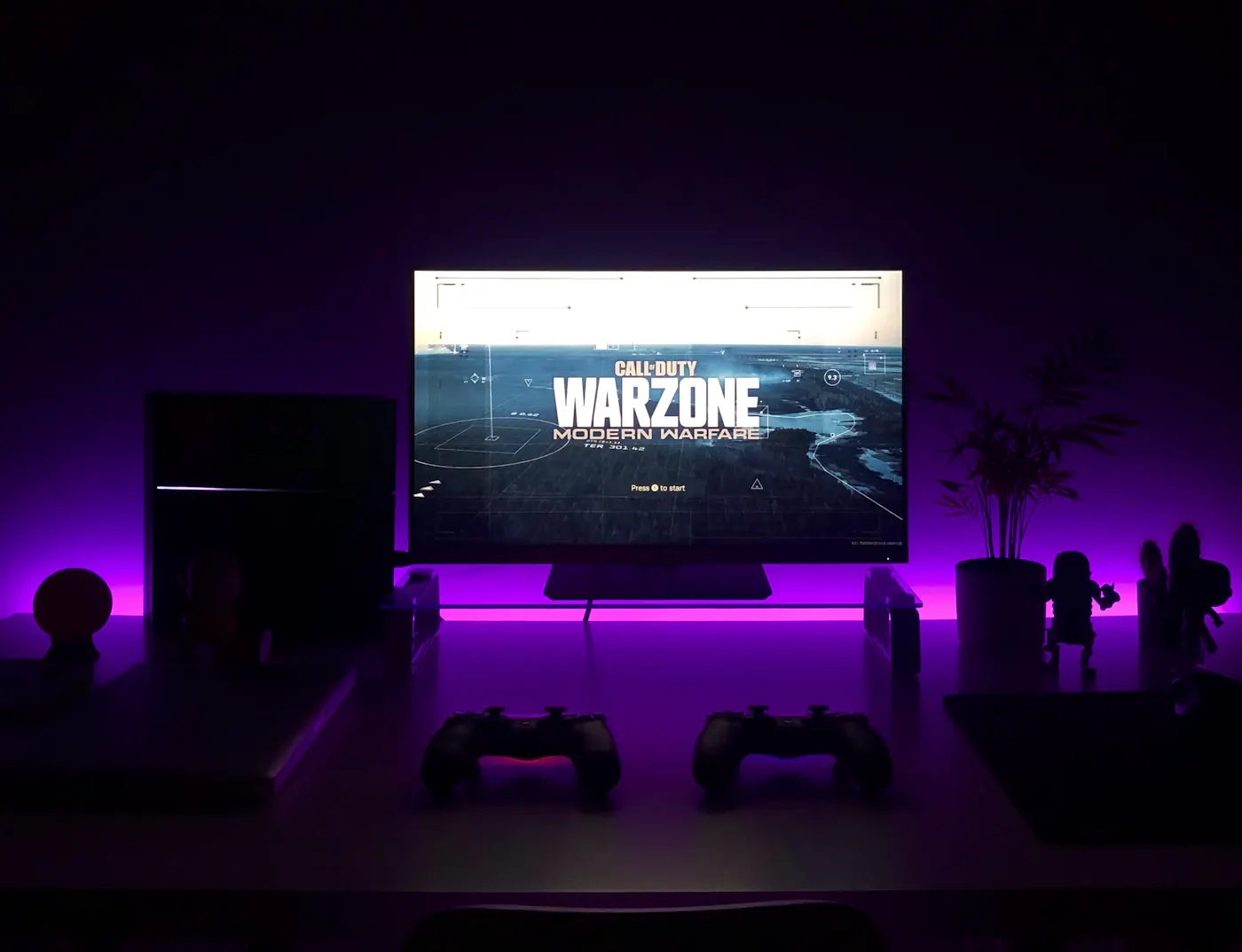
You finish work, clear a spreadsheet from the screen, and launch a game on the same monitor. A faster display sounds appealing, but your computer already struggles with demanding graphics settings. The useful purchase question is not which refresh-rate number looks largest. It is whether your display, graphics hardware, games, and connection can deliver a noticeably better experience together.
Short verdict
Prioritize a comfortable screen size, suitable resolution, and reliable variable refresh support before chasing the highest advertised refresh rate. A higher-refresh monitor can make motion feel more continuous, but it cannot manufacture frames that your computer does not render. For a shared work-and-play desk, text clarity and an adjustable stand deserve equal attention.
Match the screen to the evening
| Typical use | What to prioritize | What can wait |
|---|---|---|
| Fast competitive games | Sustained frame delivery and low-latency operation | Excessively high resolution |
| Story-driven adventures | Contrast, resolution, and comfortable size | The largest refresh-rate headline |
| Work followed by casual gaming | Clear text, ergonomic stand, useful inputs | Specialized tournament features |
| Console in a spare room | Supported input modes for that exact console | PC-only compatibility assumptions |
Refresh rate describes how often the display updates; frame rate describes the frames the game produces. They influence the same viewing experience but are not interchangeable. A game producing uneven frames can still stutter on a fast monitor. Conversely, a computer capable of producing many frames will not show every frame on a slower display.
Variable refresh technologies help coordinate compatible displays and graphics sources. Look up support for your actual monitor and graphics hardware, including the connection you intend to use. A badge on the box is useful evidence of a defined program, but it does not answer every question about supported modes or image quality.
Inspect the entire connection chain
Before buying, write down your graphics outputs, any dock or adapter, the cable, and the monitor input. Check manufacturer documentation for the resolution and refresh combinations each supports. Laptop docking stations are a frequent weak link: the laptop may support a display mode directly while the dock restricts it, especially when multiple screens share available bandwidth.
After connecting the display, select its intended refresh rate in the operating system. Microsoft documents where Windows exposes this setting. Also check in-game frame limits and display settings. Buying the hardware alone does not ensure that the faster mode becomes active automatically.
Resolution adds another tradeoff. A higher-resolution screen asks the graphics system to render more pixels. If maintaining smooth play requires reducing image settings substantially, a less demanding resolution may suit the computer better. Think about your usual games, not an impressive demonstration running on someone else’s hardware.
Spend in the right order
Start with fit: measure viewing distance, available desk depth, and space for the stand. An oversized panel on a shallow desk can be uncomfortable even if its specifications look excellent. Next establish required inputs, resolution, and refresh modes. Then compare independent reporting about motion behavior, panel uniformity, and how the screen handles ordinary desktop text.
Advertised response time is a separate claim from refresh rate. Different measurement methods and aggressive display settings can make headline numbers hard to compare. Avoid ranking monitors solely by one response-time figure. Return terms also matter because sensitivity to blur, glare, and pixel defects varies between people.
Pay for a stand or compatible mounting option that lets you position the screen properly. A good display at the wrong height becomes a daily frustration. USB hubs and extra inputs can be worthwhile on a mixed-use desk, but should not replace the basic compatibility check.
Who should skip an upgrade?
Keep your current screen if the real problem is unstable game performance, a cramped workspace, or eye discomfort caused by poor positioning. A faster monitor may expose inconsistent frame delivery without fixing it. If you mostly play slower strategy games and your existing display is comfortable, the money may be better spent elsewhere.
For shared households, consider when and where gaming happens. A quiet, comfortable setup is more useful than a display selected for competitive play that nobody actually does.
FAQ
Does higher refresh rate improve every game equally?
No. Faster-moving games generally make motion differences easier to notice. Slow-paced games can still feel smoother, but the value depends on your priorities and frame delivery.
Do I need a new cable?
Only if the existing cable or connection cannot support the intended display mode reliably. Confirm requirements in the monitor and source-device documentation before buying an expensive replacement.
Should I replace my computer first?
Check whether your usual games deliver the frame rates you want at sensible settings. If they do not, investigate the computer’s limits before assuming the display is responsible. Our portable monitor guide explains a different set of display compromises for travel.
Sources & further reading
Consult these official resources for technical details and compatibility. Product availability, specifications, and terms can change; verify the exact model before buying.
Spotted an error? Send a correction to Smartvora.